
Content repurposing
How to Repurpose a Webinar Into 10 Channel-Native Content Assets
Turn one webinar into an edited replay, SEO article, vertical video, carousel, podcast episode, email sequence, and four other useful assets without publishing the same content everywhere.
By MillsGuild Editorial ·
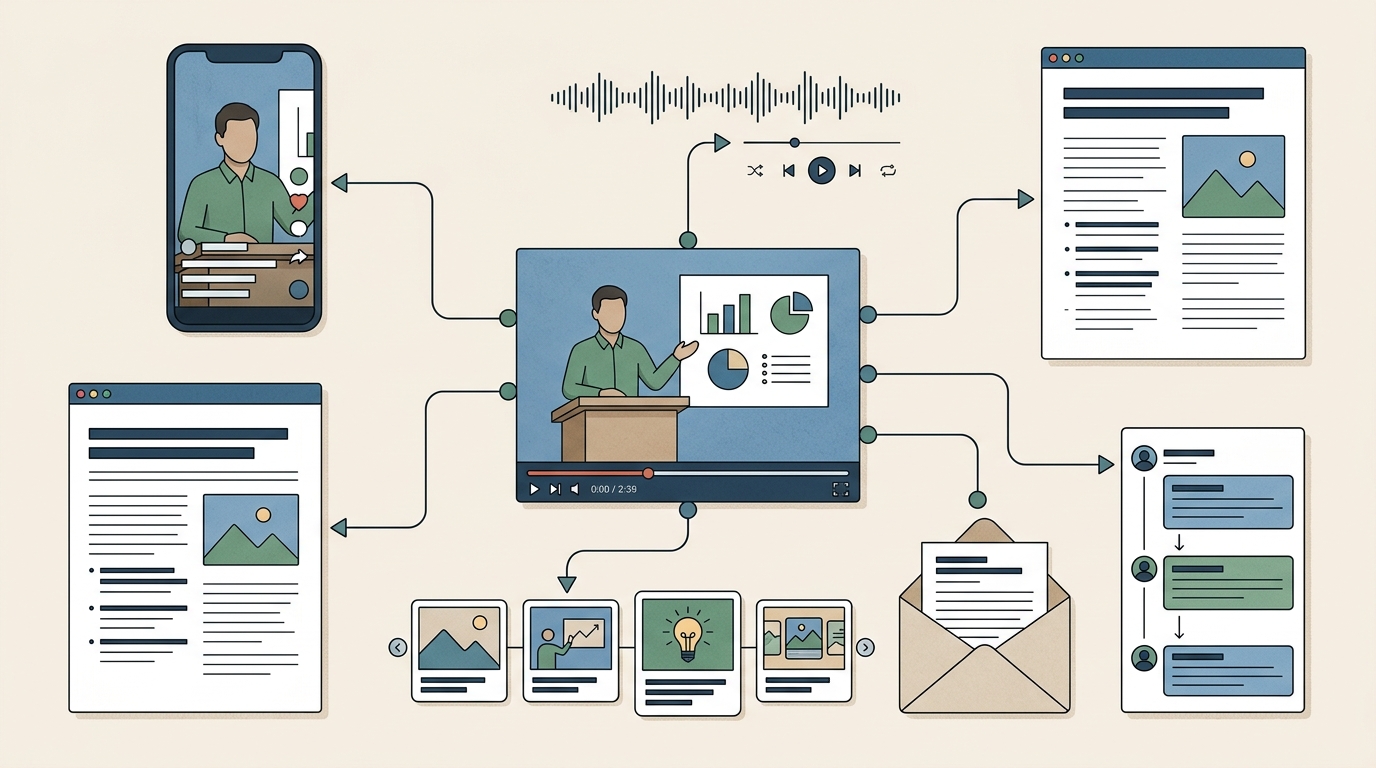
A webinar may last an hour, but the useful ideas inside it can support weeks of publishing. The mistake is treating repurposing as a file-conversion exercise: upload the replay, paste the transcript into a blog post, and share the same link on every network.
That produces more files, but it rarely produces better content.
A stronger approach is to extract the webinar's most useful ideas and rebuild each one for the channel where it will appear. A podcast listener needs context that a live attendee already had. A short-form viewer needs a clear opening before the clip makes sense. A search visitor needs an organized answer, not an unedited transcript.
This guide shows how to repurpose a webinar into 10 distinct assets while keeping the workflow manageable for a solo creator or lean marketing team.
What makes an asset channel-native?
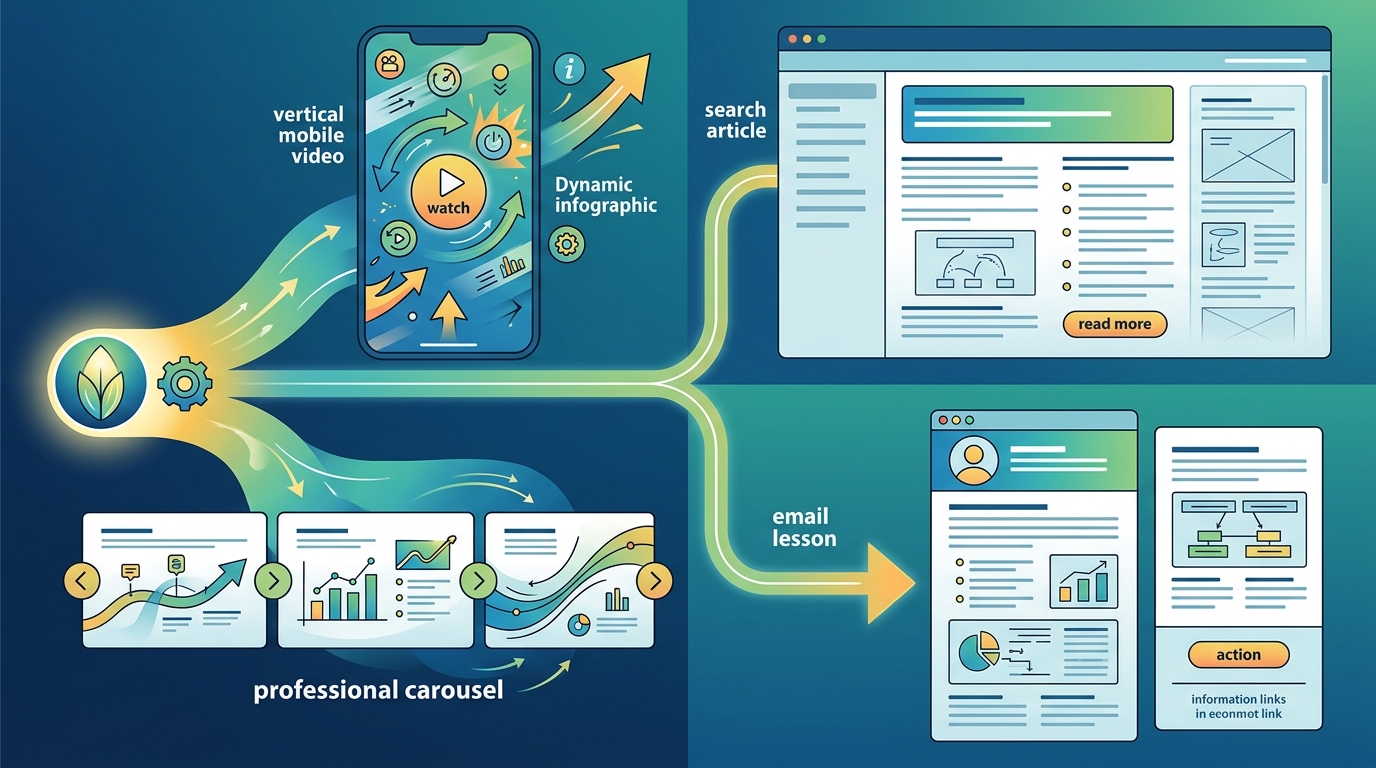
A channel-native asset matches the way people consume information in that environment. That includes its format, pacing, structure, visual treatment, and call to action.
For example, a webinar segment about reducing content-production bottlenecks could become:
- A vertical video built around one immediately useful recommendation
- A LinkedIn carousel showing the workflow one step at a time
- A search-focused article explaining the complete process
- An email that helps subscribers solve one narrow problem
The underlying idea stays consistent, but the presentation changes.
This matters more than publishing the same clip everywhere. HubSpot's marketer survey coverage identifies short-form video as a high-ROI format, but that doesn't mean every webinar excerpt automatically becomes effective short-form content. The clip still needs an understandable opening, focused edit, readable captions, and a reason to keep watching. HubSpot
Start with a content map, not an AI prompt
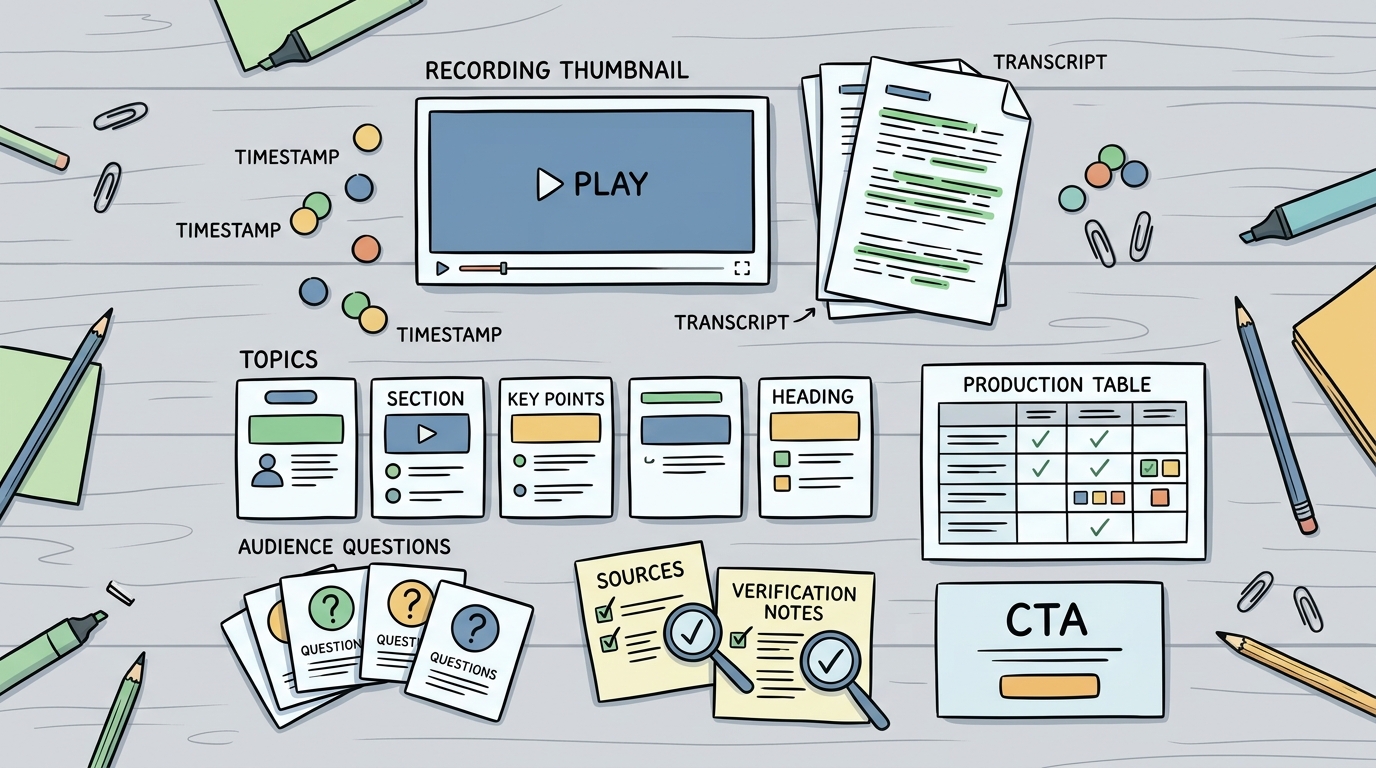
Before generating anything, create a source-of-truth document for the webinar. It should contain:
- The recording and transcript
- The webinar title and original promise
- Speaker names, roles, and approved biographies
- Major sections with timestamps
- Audience questions
- Statistics, product claims, and sources mentioned by speakers
- Offers or calls to action
- Any sections that shouldn't be reused
Next, label the transcript by idea rather than by time. Look for demonstrations, frameworks, objections, examples, strong explanations, and audience questions. A 60-minute recording might contain only five or six ideas worth extending. That's fine. Ten assets don't require ten unrelated ideas.
AI can accelerate this stage by cleaning the transcript, proposing topic labels, and identifying possible clips. It shouldn't be the final authority. Automated transcripts can mishear names, numbers, technical terms, and product details. A human reviewer should compare important passages with the recording.
Create a simple production table before drafting:
| Asset | Core idea | Intended audience | Format | Call to action | Owner |
|---|---|---|---|---|---|
| Vertical clip | One costly workflow mistake | Busy social viewers | 9:16 video | Read the guide | Editor |
| Article | Complete workflow | Search visitors | Structured tutorial | Try the workflow | Writer |
| First step | Existing subscribers | Short lesson | Watch the replay | Marketer |
This prevents every asset from becoming a broad recap of the entire event.
1. An edited on-demand replay
The replay is the closest derivative of the original webinar, but it still deserves an editorial pass.
Remove pre-event waiting time, extended housekeeping, dead air, and technical interruptions. Add a concise description that tells viewers what they'll learn. If the presentation covers several topics, provide timestamps so viewers can move directly to the relevant section.
Host the replay on a dedicated page with:
- A specific title
- A short summary
- Speaker information
- Key takeaways
- A corrected transcript or detailed notes
- One relevant next step
On-demand viewing extends a webinar beyond its live audience. ON24's webinar benchmark coverage treats on-demand engagement as a meaningful part of webinar performance, so the replay should be planned as a durable asset rather than an archive file. ON24
Before publishing, remove offers, dates, or product details that have expired since the event.
2. A search-focused authority article
Don't publish the raw transcript as the article. Spoken presentations contain repetition, incomplete sentences, visual references, and transitions that don't work on a page.
Instead, choose the main problem the webinar solves and build the article around that search intent. Reorganize the material into a logical progression, even if the speakers covered it in a different order.
A useful article usually needs:
- A direct explanation of the problem
- A practical process for solving it
- Examples or scenarios from the webinar
- Limitations and common mistakes
- A next step for readers who need more help
Embed the replay when it adds value, but make the written article complete enough to stand on its own. Verify every statistic and time-sensitive claim before publishing. If a speaker gave an opinion or estimate, identify it as such rather than converting it into an unsupported fact.
Write for scanning and search intent, not for the chronology of the live presentation.
3. One focused vertical video
Choose a segment that communicates one useful point without requiring ten minutes of setup. Good candidates include a clear answer, a counterintuitive observation, a concise process, or a demonstration with an obvious outcome.
The excerpt may need to be re-edited rather than simply clipped. Add a short opening card or spoken introduction if the original segment begins halfway through a conversation. Reframe wide webinar footage for a vertical canvas, but avoid crops that cut off slides, faces, or demonstrations.
Include corrected captions and keep visual elements readable on a phone. If the speaker refers to something outside the frame, insert the relevant slide or screen capture.
One webinar can eventually produce several clips, but start with one. Publish it, inspect retention and response, and use that information to choose the next segment. The useful point should arrive before the webinar introduction.
4. A YouTube topic cut
A viewer searching YouTube for a specific answer may not want the complete webinar. Turn one self-contained section into a focused video with its own title, introduction, and conclusion.
For example, a broad webinar called “Build a Lean AI Content System” might contain a focused video called “How to Review AI-Generated Marketing Content Before Publishing.”
Remove references such as “as we discussed earlier” unless the earlier material is included. Add a short setup explaining who the lesson is for and what it covers. Write a description that summarizes the substance rather than merely promoting the original event.
If you also upload the complete webinar, organize it with descriptive chapters. Topic cuts and a full replay can coexist because they serve different viewing intentions. The finished video should feel like a complete answer, not an excerpt that stops mid-thought.
5. A LinkedIn document carousel
A carousel works well when the webinar contains a process, checklist, comparison, or sequence that can be understood slide by slide.
Use a simple structure:
- Cover slide with a concrete promise
- The problem or costly mistake
- One step or idea per slide
- A short example
- A final action or question
Avoid shrinking webinar slides and calling the result a carousel. Presentation slides are designed to support a speaker, while a social carousel has to communicate on its own. Rewrite the copy, enlarge the type, and remove decorative elements that don't help the reader.
A seven-step framework doesn't necessarily require seven dense paragraphs. Give each slide one job and make the sequence understandable without narration.
6. A discussion-oriented social thread
Turn a nuanced webinar argument into a connected series of text posts for X, Threads, LinkedIn, or another conversational platform.
Begin with the conclusion or tension, then unpack the reasoning. Each post should advance the idea rather than restating it. End with a genuine question, a practical action, or a link for readers who want the complete resource.
For example:
- Post 1: State the content bottleneck the webinar addressed
- Post 2: Explain why the common solution creates more work
- Post 3: Show the alternative workflow
- Post 4: Give one implementation example
- Post 5: Ask how other teams handle the problem
Don't manufacture controversy or bait replies. A good thread creates room for informed discussion while remaining useful to people who never open the replay. The goal is to turn the presentation into a useful argument, not a sequence of quotations.
7. A podcast episode
Webinars featuring interviews, panels, or detailed explanations can often become podcast episodes. The audio still needs an editorial pass.
Remove setup chatter, long pauses, technical interruptions, and visual references that make no sense without the screen. If the speaker says “look at this chart,” add narration explaining the relevant finding or remove the section.
Record a new introduction that explains:
- Who is speaking
- What the discussion covers
- Why it matters to this audience
- Whether the episode was adapted from a webinar
A new outro can point listeners to the replay, article, or related resource. Make sure you have permission to redistribute each speaker's contribution through podcast feeds. The introduction and any added narration should supply the context that live attendees received visually.
8. A customer-question FAQ resource
Audience questions are particularly useful because they reveal where the original presentation left uncertainty. Group related questions, remove duplicates, and rewrite vague questions only when doing so preserves the audience's intent.
Answers should be concise, direct, and independently useful. If a speaker answered too quickly during the event, expand the response using verified information. If the answer depends on budget, industry, or team size, explain that limitation.
An FAQ can live beneath the replay, inside the main article, or on a separate resource page when the questions support a distinct topic. Don't add structured data merely because the page uses a question-and-answer format. Any markup should accurately represent visible page content and follow current search-engine guidance.
The finished resource should prioritize direct answers over preserving the back-and-forth of the live Q&A.
9. A quote, framework, or data graphic
Choose a visual idea that can survive outside the webinar. That might be an original framework, a carefully sourced statistic, a process diagram, or a short quotation with enough context to remain accurate.
Before publishing a quote card, compare the wording with the recording. Editing filler words is reasonable, but don't turn a qualified statement into an absolute claim. Obtain approval when speaker agreements or brand policies require it.
For data graphics, cite the original source rather than the webinar itself whenever possible. If the number came from a live audience poll, label it as a poll from that event and include the sample details if they are available. Don't present an informal poll as market-wide research.
The image should be understandable without requiring the caption to correct or explain it.
10. An email nurture sequence
A webinar can support several emails, but each message should have a separate purpose. Sending the same replay link repeatedly isn't a nurture strategy.
A practical sequence could include:
- Email 1: Replay and key takeaways for registrants
- Email 2: A deeper explanation of the webinar's most useful framework
- Email 3: An answer to a common audience question
- Email 4: A relevant example, template, or next step
Segment where useful. An attendee may need a follow-up resource, while a registrant who missed the session may need a concise explanation of why the replay is worth watching.
Keep each email focused. Use the subject line to describe the value of that message rather than announcing that it's part of a repurposing campaign. Each email should deliver one useful lesson and reflect the subscriber's likely relationship with the event.
A lean AI-assisted production workflow
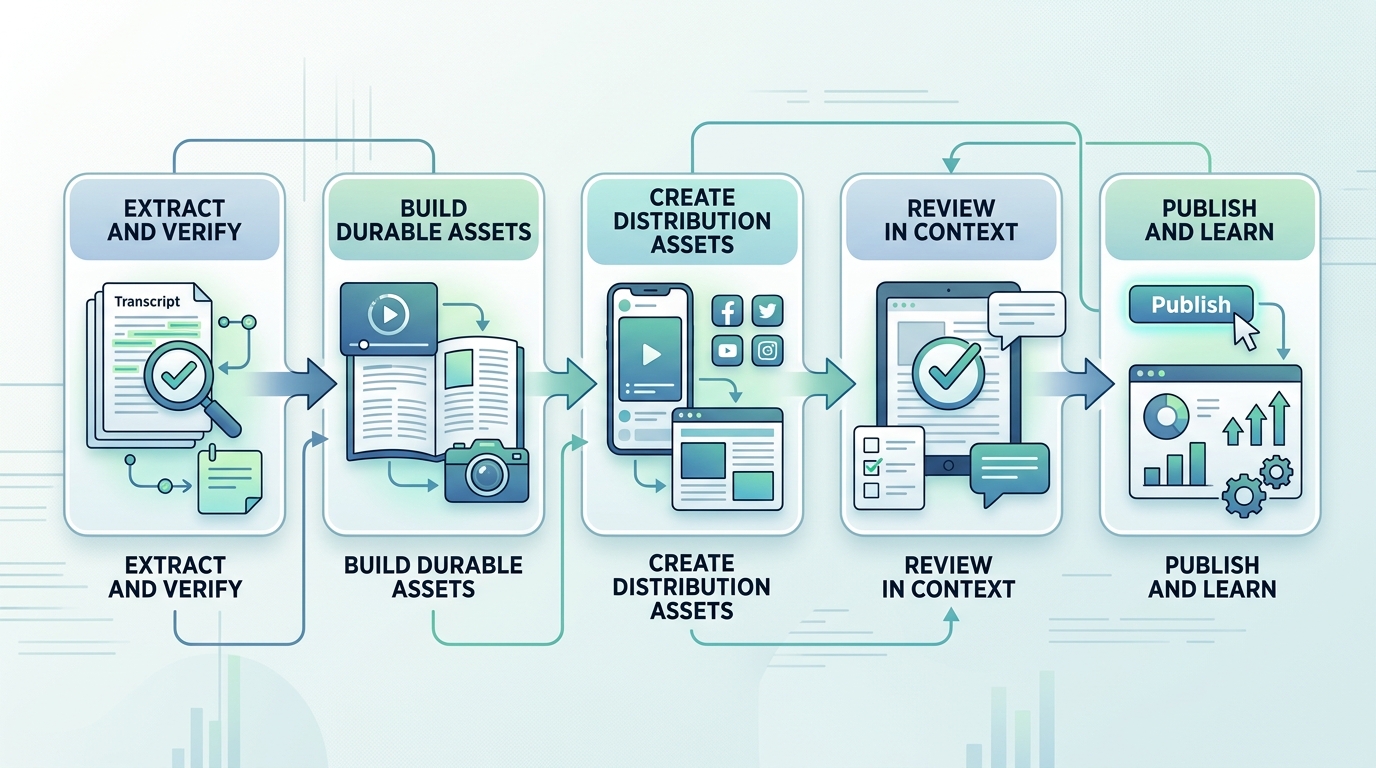
Producing all 10 assets at once can create an unnecessary review backlog. A staged workflow is easier to manage.
Stage 1: Extract and verify
Generate the transcript, identify speakers, label topics, and mark potentially sensitive claims. Verify names, statistics, quotations, and product statements against the recording and original sources.
Stage 2: Build the durable assets
Create the edited replay, article, and FAQ first. These become reference materials for the shorter derivatives and give reviewers a stable version of the core message.
Stage 3: Create distribution assets
Produce the vertical clip, YouTube topic cut, carousel, thread, podcast episode, graphic, and email sequence. Adapt each from the verified source material instead of asking separate AI tools to reinterpret the webinar from scratch.
Stage 4: Review in context
Preview each asset where it will appear. Check mobile text size, caption accuracy, video crops, links, thumbnail legibility, and calls to action. Confirm that a person encountering the asset without seeing the webinar can understand it.
Stage 5: Publish and learn
Don't judge every asset by the same metric. For video, inspect viewing behavior and meaningful responses. For the article, watch qualified search visits and next-step actions. For email, review clicks, replies, and unsubscribes. For social posts, saves and relevant conversations may be more useful than raw impressions.
Use those observations to decide which webinar topic deserves another clip, article, or campaign. Results vary, and publishing more derivatives doesn't guarantee more reach or customers.
Where integrated tools help
A fragmented workflow might require separate applications for transcription, video editing, graphics, writing, scheduling, and analysis. Specialized tools can be worthwhile when a team needs advanced control in one area, but moving material between them also adds approvals, file management, and opportunities for brand details to drift.
An integrated platform can reduce some of that coordination. MG Social Studio supports AI-assisted video and blog creation, research, publishing workflows, and Growth Copilot recommendations in one environment. For a lean team, the practical benefit is having fewer handoffs between research, production, publishing, and review. The platform does not remove the need for editorial judgment. It gives the team one place to preserve the source material, assess drafts, publish deliberately, and learn from the result.
Start creating with MG Social Studio
AI-generated recommendations and content should be reviewed before publishing. Results vary.
Frequently asked questions
How many short clips should I make from one webinar?
Start with one to three clips built around distinct, self-contained ideas. Review their performance and audience response before producing the rest. A long webinar doesn't automatically contain dozens of useful short videos.
Can I publish the webinar transcript as a blog post?
You can publish a corrected transcript, but it usually shouldn't replace an article. A search-focused article needs clearer structure, removed repetition, verified claims, and enough context to make sense without watching the recording.
What should I repurpose first?
Create the edited replay and a verified content map first. Then prioritize the asset that matches your current distribution strength. A company with an established email list may start with the follow-up sequence, while a video-led creator may produce the first vertical clip sooner.
Can AI automate the complete webinar repurposing process?
AI can assist with transcription, topic extraction, drafting, captioning, and format adaptation. Human review is still needed for factual accuracy, permissions, speaker context, brand voice, and final publishing decisions.
Do I need to use all 10 formats?
No. The framework is a menu, not a quota. Choose the formats that match your audience, available channels, and ability to review the work. Five strong assets are more useful than 10 rushed ones.