
Product showcase video
How to Turn Product Photos and Specs Into 9:16 Showcase Videos
A practical workflow for converting product images and specifications into vertical showcase videos, including asset preparation, scripting, AI prompts, quality control, and export settings.
By MillsGuild Editorial ·
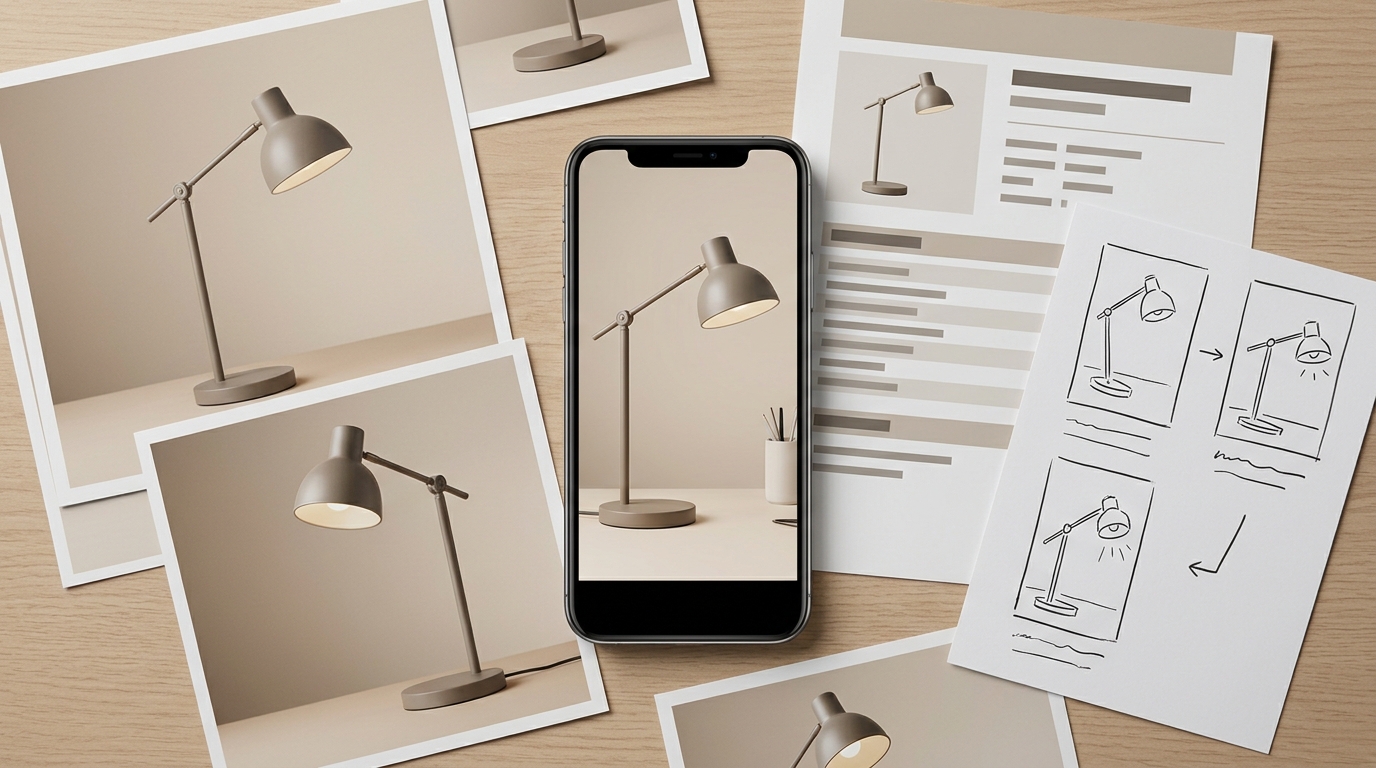
How to Turn Product Photos and Specs Into 9:16 Showcase Videos
You can create a useful product showcase video without booking a studio. With clear product photos and verified specifications, an AI product video generator can help you prepare short vertical videos for Reels, TikTok, Shorts, ads, and product pages.
The goal is not simply to make a still image move. The finished video should show the product accurately and give viewers a clear reason to care.
Generative video tools may alter packaging, colors, controls, or proportions. Research and guidance on generative video limitations identify risks such as temporal changes, distorted details, and inaccurate text or logos. A reliable workflow starts with approved source material, then adds a focused script, limited motion, and human review. (Hailuo AI; Eko)
This workflow uses the following checkpoints: approve the source files, define one audience and angle, write a scene-based script, generate only supported motion, inspect each clip, and export a clean vertical master.
What you need before generating the video
Prepare a small source package containing the material the video system is allowed to use.
Product photos
Collect the highest-resolution images you have permission to use. A useful set may include:
- A front or three-quarter view
- Close-ups of important features
- A side or rear view when those angles matter
- Packaging, if it will appear in the video
- An accurate in-use photo
- A transparent logo file
Original files are preferable to screenshots from a product page. Screenshots can include compression, navigation elements, inconsistent cropping, or text that is difficult to preserve during animation.
Give extra attention to reflections, transparent materials, thin accessories, small typography, and complicated hand positions. These details are easy to misrepresent when a model generates new frames.
Verified product specifications
Create a compact fact sheet instead of pasting an entire product page into the generator. Keep confirmed facts separate from positioning language.
Verified facts
- Capacity: 750 ml
- Material: double-wall stainless steel
- Available colors: black, white, and blue
- Lid type: threaded
- Care instruction: hand wash only
Approved positioning
- Designed for commuting and everyday travel
- Fits standard vehicle cup holders
- Minimal exterior design
Claims that require evidence or qualification
- Keeps drinks cold all day
- Leakproof in every position
- Indestructible
- Environmentally friendly
This separation helps prevent a generated script from turning a general benefit into an absolute promise. Leave out any specification that cannot be confirmed in the approved product documentation.
A defined objective
Choose the video's purpose before generating scenes. An introduction, feature explanation, routine demonstration, and paid-ad variation will not use the same structure.
Possible objectives include:
- Introducing a new product
- Explaining one differentiating feature
- Showing color or style options
- Demonstrating how the product fits into a routine
- Answering a common pre-purchase question
- Creating a short paid-ad variation
Trying to cover every specification in one short video usually creates crowded captions. One product can support several videos, each built around a different buying question.
Step 1: Choose one audience and one product angle
Start with an angle rather than a camera effect.
Suppose you sell a compact desk lamp with adjustable color temperature, USB-C charging, and a foldable arm. Possible angles include:
- A small-space lighting solution for apartment desks
- A portable lamp for hybrid workers
- Adjustable lighting for evening reading
- A clean desk upgrade for minimal workspaces
Each angle changes the opening line, visual sequence, and specification that deserves attention.
Use this planning sentence:
This video shows [audience] how [product] helps with [specific situation] by highlighting [verified feature].
For the lamp:
This video shows hybrid workers how the folding desk lamp saves space by highlighting its adjustable arm and USB-C power input.
That sentence gives the generator a clear boundary without asking it to invent a marketing strategy from a list of specifications.
Step 2: Convert specifications into customer-facing benefits
Specifications describe the product. Benefits explain why a specification matters in a particular situation.
| Specification | Possible benefit | Visual proof |
|---|---|---|
| Foldable arm | Takes up less space when stored | Arm folding beside a laptop |
| USB-C input | Works with a widely used cable type | Close-up of the actual port |
| Three light settings | Adapts to different tasks | Three labeled lighting states |
| 750 ml capacity | Holds more than a small cup | Product beside a familiar object for scale |
Only show visual proof that the source material can support. If you have only a front-facing image of a lamp, asking the model to reveal a rear charging port may lead it to invent the port's location or shape.
Use a manufacturer-supplied close-up, a simple specification card, or a caption over a verified product image when the available photos cannot demonstrate a feature. A controlled still-image edit is preferable to a fabricated demonstration.
Step 3: Write a short scene-based script
Write the script as scenes. Each scene should have one clear job:
- Opening: identify the use case or problem.
- Product reveal: show the product clearly.
- Feature proof: highlight one or two verified features.
- Outcome: connect the features to the intended situation.
- Call to action: tell viewers what to do next.
Here is a sample script for the desk lamp:
Scene 1, opening text: Small desk? Your lighting does not need to take over.
Scene 2, voiceover: This folding desk lamp is designed for compact workspaces.
Scene 3, voiceover: Adjust the arm, choose from three light settings, and power it through USB-C.
Scene 4, on-screen text: Fold. Store. Reset your desk.
Scene 5, call to action: See colors and specifications.
The script avoids claims about improved productivity, reduced eye strain, or universal device compatibility. Those claims would need appropriate support.
Keep on-screen text shorter than the voiceover so captions remain readable on a phone.
Step 4: Build a vertical storyboard
A 9:16 video uses a tall frame. A common production target is 1080 by 1920 pixels, but confirm the current requirements of each destination before publishing. TikTok for Business identifies 9:16 as the recommended vertical format for an optimal viewing experience, while current industry guidance commonly uses 1080 by 1920 as a practical master canvas. (TikTok for Business; Stack Influence)
A wide ecommerce image may leave too much empty space when placed on a vertical canvas. You can adapt it by:
- Cropping around the product while preserving proportions
- Placing it over a branded background
- Using an enlarged copy as a background layer
- Adding close-up cutaways between wider views
- Dividing the frame between the product and specifications
Keep logos, product details, captions, and calls to action away from the extreme top and bottom of the frame. Platform interfaces may cover those areas, and the overlays vary by placement. Meta's Reels guidance recommends keeping key creative elements in the safe zone. (Meta for Business)
A five-scene storyboard could look like this:
| Scene | Visual | Motion | Text |
|---|---|---|---|
| 1 | Product silhouette or close-up | Quick reveal | Small desk? |
| 2 | Full product image | Slow push-in | Folding desk lamp |
| 3 | Arm and controls | Controlled pan | 3 light settings |
| 4 | Product beside laptop | Gentle parallax | Built for compact setups |
| 5 | Product and logo | Mostly static | See colors and specs |
Make the final frame calmer than the opening. A stable product image gives viewers time to read the call to action.
Step 5: Prompt for restrained, product-safe motion
A prompt such as “make this product look cinematic” gives the model too much freedom. Describe the camera, product behavior, background, lighting, and changes that are not allowed.
Use a structure like this:
Create a vertical 9:16 product shot using the supplied image as the exact visual reference. Use a slow camera push-in with subtle left-to-right parallax. Keep the product's shape, color, controls, materials, logo, text, and proportions unchanged. Use soft studio lighting and a clean neutral background. Do not add accessories, ports, buttons, labels, hands, liquid, or moving product parts.
For a demonstration, request only motion supported by the source material:
Animate the supplied folding lamp image in a vertical 9:16 frame. Show the existing arm folding slowly at its visible hinge. Preserve the exact base, controls, cable port, color, and proportions. Use a fixed camera and neutral background. Do not invent additional hinges or alter the logo.
Treat the prompt as a constraint list, not as a fidelity guarantee. Product details can still change during generation, so inspect every clip before using it.
When to avoid generative motion
Use conventional editing when the product contains important packaging text, a detailed logo, safety labels, precise mechanical parts, regulated information, transparent components, or small controls whose placement matters.
Zooms, pans, masks, animated captions, light sweeps, and transitions can add movement while preserving the original photograph. This is often the safer choice when exact appearance matters.
Step 6: Assemble the showcase
Some AI product video generators combine scripting, image animation, voiceover, captions, music, and export. Others create only short clips that must be assembled elsewhere.
Evaluate the complete workflow rather than one demonstration clip. Ask:
- Can I use multiple reference photos?
- Can I lock the aspect ratio to 9:16?
- Can I revise an individual scene?
- Can I edit the script and captions?
- Can I replace a distorted scene with the original photograph?
- Are commercial usage terms clear?
- Can I export a clean master?
- What happens to credits when a scene fails?
Image-to-video tools such as Photoroom's AI product video workflow show how static product imagery can be used as the starting point for generated motion. The exact controls and output options vary by product, so check the tool's current documentation before committing to a workflow.
MG Social Studio is built around an integrated workflow for short-form video and related publishing assets. Use the platform to keep the angle, script, source files, scene versions, review notes, and publishing copy connected rather than passing them between disconnected tools. The final approval should still come from a person who checks the product and claims.
Step 7: Run a frame-by-frame quality check
Do not approve a product video after watching it once at normal speed. Review each scene closely, then watch the complete edit with and without sound.
Product accuracy
Check for changes to:
- Product color or material
- Shape, dimensions, or proportions
- Button, port, seam, or hinge placement
- Packaging text
- Logo spelling or orientation
- Included accessories
- Number of components
Pause on the first, middle, and final frames of every generated clip. Temporal instability can reveal changes that are easy to miss during a normal-speed review.
Claim accuracy
Compare every caption and voiceover line with the approved fact sheet. Review words such as “always,” “never,” “best,” “guaranteed,” “safe,” “proven,” and “all-day.”
A specification may also need context. Battery life can depend on brightness settings, capacity can be nominal rather than usable, and compatibility may apply only to certain models. Qualify the statement or remove it.
Viewing experience
Watch the video on a phone. Check whether:
- The opening text can be read immediately
- The product is identifiable early in the video
- Captions avoid important features
- The sequence works without audio
- The call to action remains visible long enough
- Audio levels are consistent
Use the destination platform's preview before publishing. Cropping and interface overlays can differ from the editor's view.
Rights and disclosures
Confirm that you have permission to use every photo, logo, voice, soundtrack, and generated element. A music track permitted for an organic post may have different terms for paid advertising or redistribution. Review the license supplied by the platform or music provider.
If the video includes an endorsement, affiliate relationship, sponsored content, or a synthetic presenter who could be mistaken for a real endorser, obtain appropriate legal or compliance guidance. Disclosure requirements depend on the content, relationship, location, and platform. The FTC endorsement guides provide general guidance, but they are not a substitute for advice about a particular campaign.
Recommended export checklist
For a reusable vertical master, a practical starting point is:
- Aspect ratio: 9:16
- Resolution: 1080 by 1920 pixels
- Container: MP4
- Video codec: H.264
- Audio: AAC
- Frame rate: match the source or editing timeline
- Captions: burned in or uploaded separately, depending on the destination
These are production recommendations, not permanent universal platform rules. Check current requirements before launching an important campaign. Destination specifications can change, and a clean master may need platform-specific publishing copies.
Keep a clean master without platform watermarks. Create separate publishing copies when networks require different captions, disclosure text, music, or calls to action.
Create variations by changing one element at a time
After the base video passes review, create a controlled set of variations. Test a problem-led opening against a product-led opening, or compare voiceover with a text-only presentation.
Avoid changing the hook, music, scene order, captions, and offer simultaneously. If everything changes, performance data cannot show which creative decision affected the result.
Choose metrics that match the video's purpose. Watch time and completion may matter for an educational showcase. Landing-page visits, qualified clicks, add-to-cart activity, or conversions may matter for a product campaign. Views alone do not establish business impact.
A repeatable production template
For each product, save a reusable brief:
Product: [Name and model]
Audience: [Specific buyer or use case]
Video objective: [One outcome]
Verified specifications: [Approved fact list]
Prohibited claims: [Claims that must not appear]
Visual references: [Approved file names]
Opening: [First visual and text]
Scenes: [One purpose per scene]
Call to action: [Next step]
Required review: [Brand, legal, product, or compliance reviewer]
Use the brief as the approval record. A consistent record makes the workflow easier to repeat and delegate while preserving control over product accuracy.
Where AI fits in the workflow
Use AI for drafting, script variations, safe image animation, caption creation, and creative testing. Keep specifications, claims, product appearance, licensing, and publishing decisions under human review.
Automate file movement, versioning, caption preparation, approvals, and scheduling only after the review stages are defined. Publishing unreviewed product claims creates avoidable risk.
Set four approval points: confirm the source facts, approve the script, inspect the visuals, and review the final platform preview. This assigns a clear owner to what customers see.
If you want to manage short-form video creation within a broader research and publishing workflow, start creating with MG Social Studio.
Results vary. AI-generated recommendations and content should be reviewed before publishing.
Frequently asked questions
Can AI create a product video from one photo?
Yes, some image-to-video tools can create motion from one photograph. A single image limits the angles and details available to the system, so asking it to rotate the product or reveal an unseen side may produce inaccurate details. Multiple approved views generally provide better reference material.
How long should a product showcase video be?
There is no universal duration. Make the video long enough to communicate one useful idea without padding. A simple feature showcase may need only a few scenes, while a technical demonstration may require more explanation. Check the current requirements of the destination platform and campaign type.
Should every product image be animated with generative AI?
No. Preserve the original image when typography, packaging, controls, or product geometry must remain exact. Cropping, panning, masking, and caption animation can add movement without redrawing the product.
Can the same 9:16 video be posted everywhere?
A clean 9:16 master can be adapted for several vertical-video platforms, but the publishing copy may need changes. Review cropping, music rights, captions, disclosures, duration limits, and calls to action for each destination.
How do I reduce the chance that AI changes my product?
Use clear reference images, request restrained camera movement, and generate short scenes that can be reviewed independently. These steps reduce review scope but do not guarantee fidelity. Replace inaccurate scenes with original product imagery instead of publishing a distorted representation.
Sources
Sources
- https://ads.tiktok.com/business/creativecenter/quicktok/online/creative-tips-for-home-and-lifestyle/pc/en
- https://www.facebook.com/business/ads/facebook-instagram-reels-ads
- https://hailuoai.video/pages/knowledge/maintaining-spatial-logic-s2v-clips
- https://eko.com/resources/the-complete-guide-to-ai-powered-product-videos
- https://www.photoroom.com/ai-product-video-generator
- https://www.ftc.gov/business-guidance/advertising-marketing/endorsements-influencers-reviews
- https://mgstudio.millsguild.com